Read design docs with diagrams and steps side by side
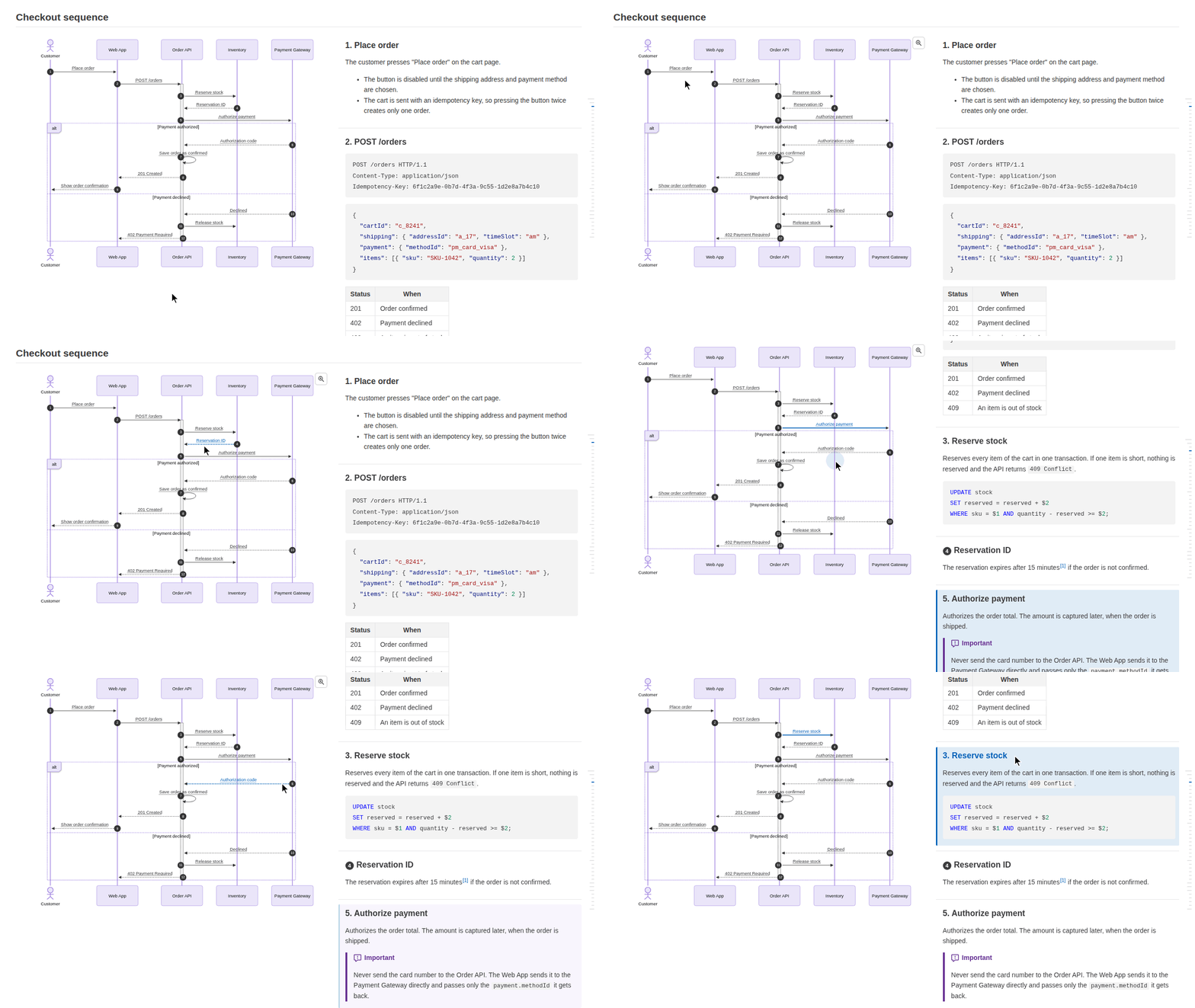
A viewer for design documents written in Markdown. mermaid sequence diagrams and flowcharts are shown beside their step descriptions, and each arrow (or node) is linked to its heading.
The sample is a design document exported to HTML. Hover the arrows and headings to try the highlighting.
Still plain Markdown
The links are written with mermaid comments and HTML comments, so the same file still renders correctly on GitHub and in other Markdown previews.
```mermaid
%% @link-headings
sequenceDiagram
    Auth->>DB: Fetch user
    %% @ref Issue token
    Auth-->>API: Return access token
```

### Fetch user

Look up the user by id.

### Issue token

Issue a JWT valid for one hour.-
Mark the diagram
Write
%% @link-headingsin a sequence diagram, a flowchart, an ER diagram or a state diagram. It is shown side by side with the headings after it. -
Write the steps as headings
An arrow or node is linked to the heading with the same text. Numbered headings like
### 3. Fetch usermatch too. -
Use
@refwhen they differ%% @ref <heading>links the next arrow to a heading with other words. Missing links are reported as warnings.
Made for design documents
Hover or click an arrow to highlight its step, or click a heading to find it in the diagram. The diagram stays in view while the steps scroll.
Flowcharts too
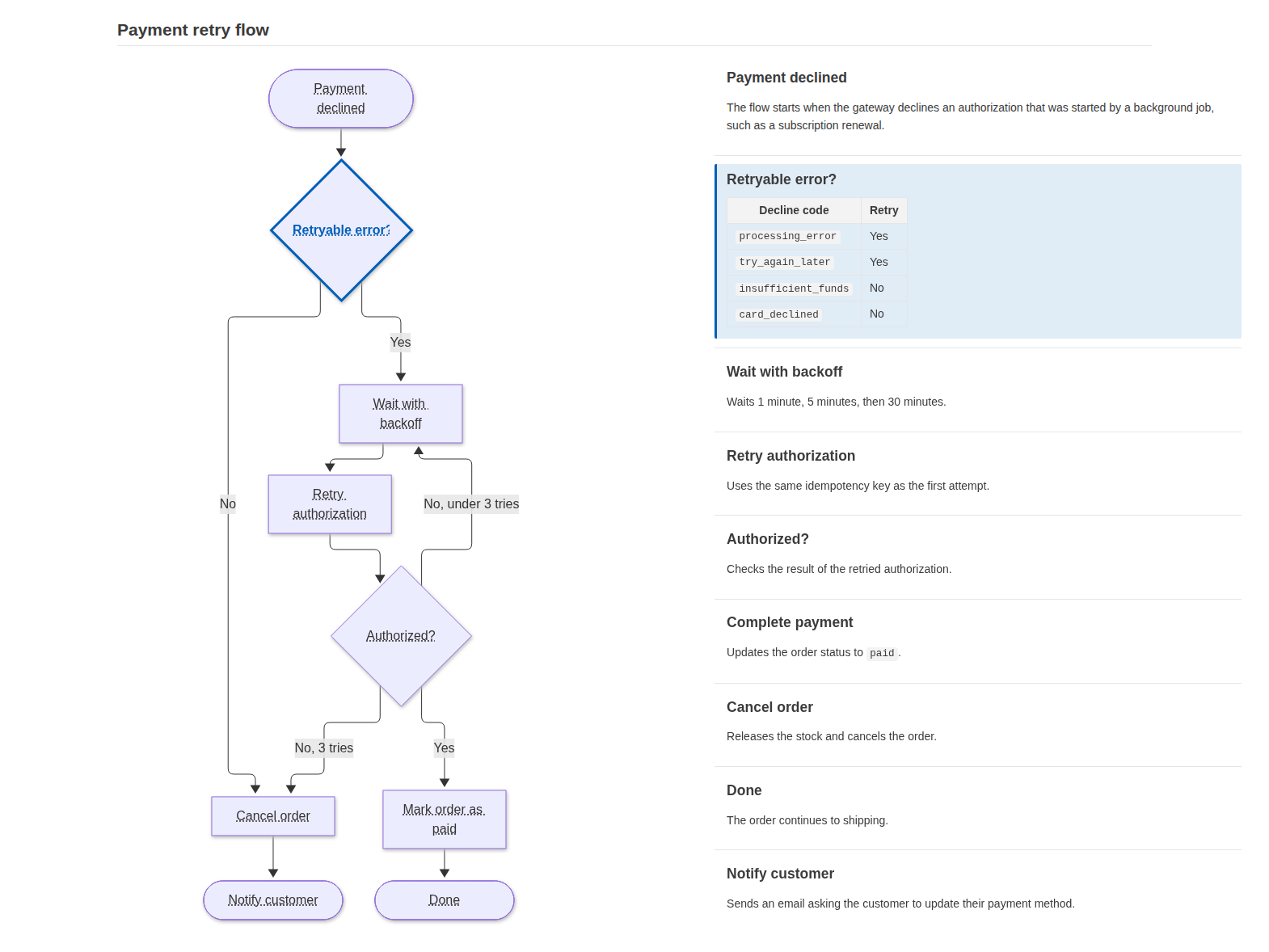
Flowcharts are linked the same way, with their nodes in place of arrows, and so are the entities of ER diagrams and the states of state diagrams, to put the definition of each table or the description of each state beside the diagram. Horizontal diagrams (LR / RL) are shown above their headings instead of beside them.
Find missing steps
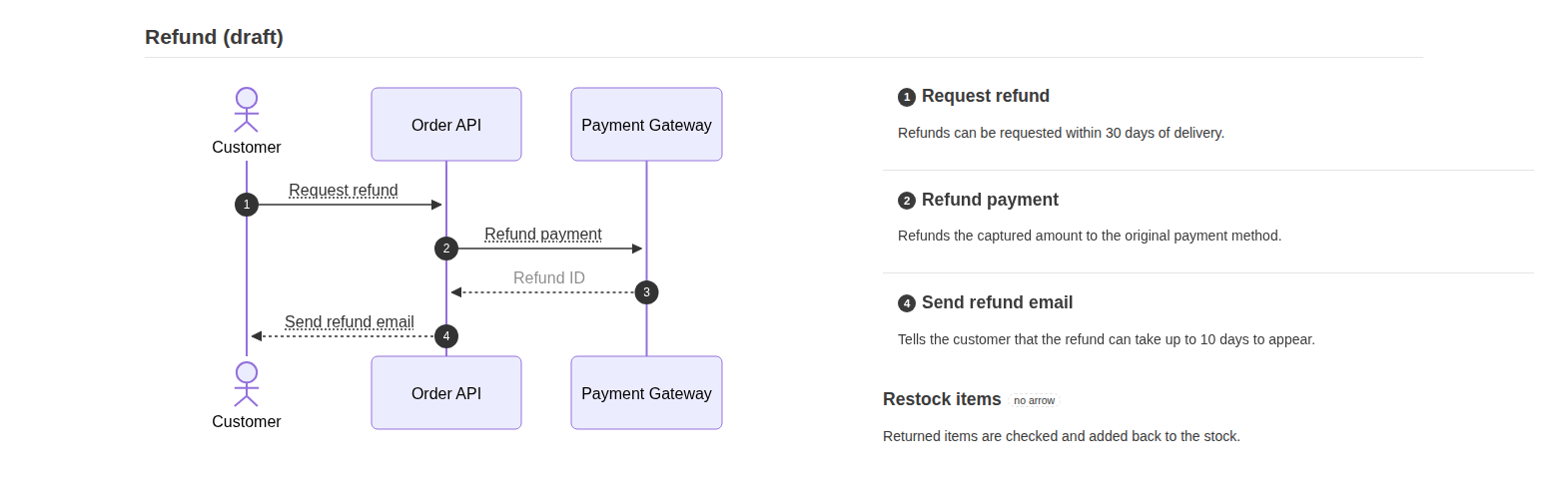
Arrows without a heading are faded, and headings without an arrow are marked. In VS Code they are also reported in the Problems panel, with quick fixes.
A header from the front matter
With type: design_doc in the YAML front matter, the title, version, product, status and updated date are shown as the document's header.

The notation of design documents
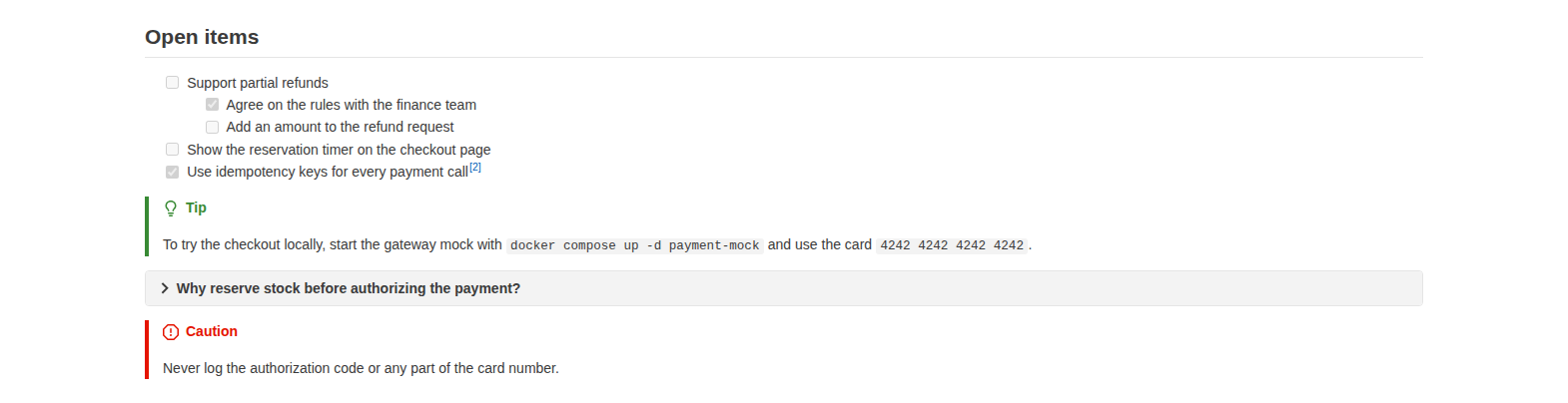
GitHub alerts, task lists, footnotes, collapsible sections and syntax-highlighted code blocks are rendered. Long tables keep their header row in view.
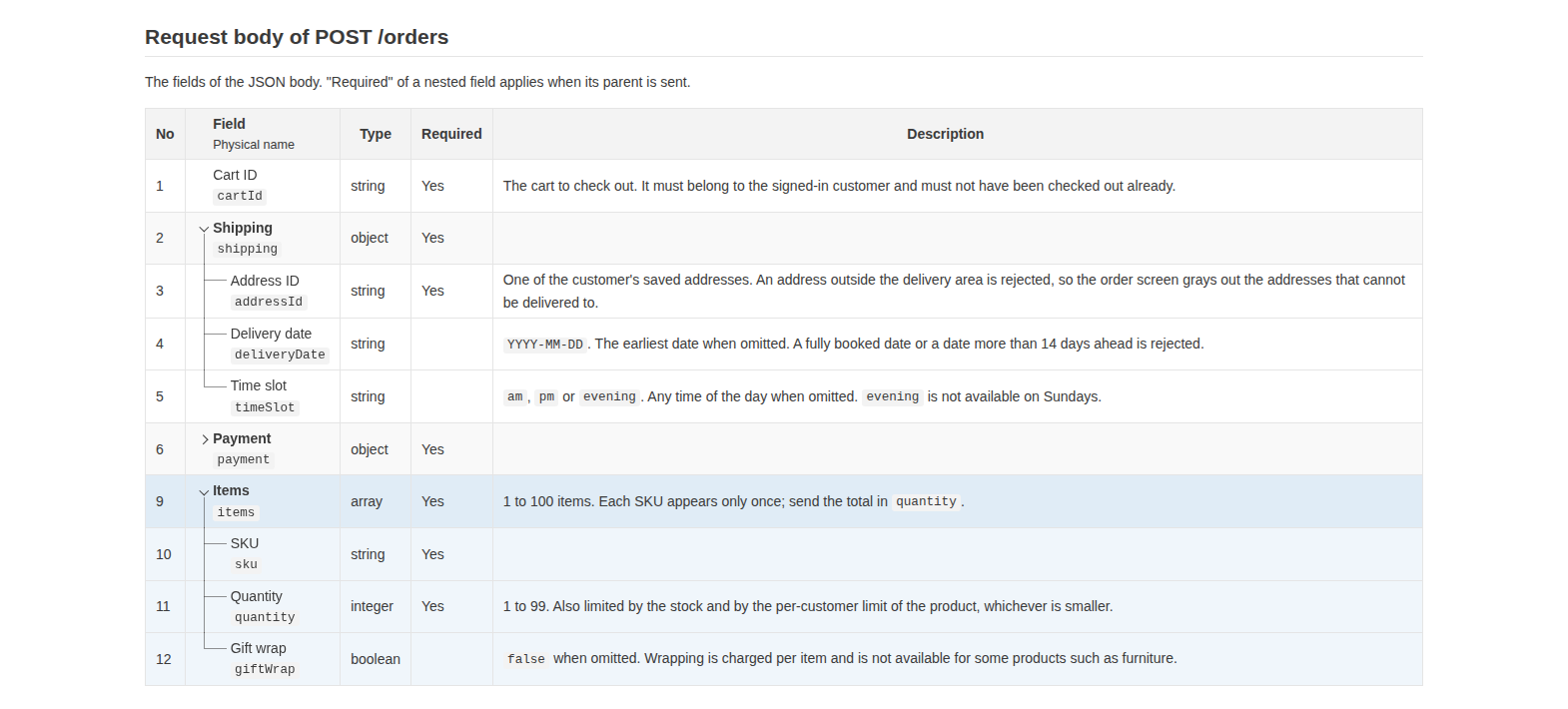
Tables of items
In tables of the items of a message, a file or a screen, a comment before the table shows the physical names under the item names, and the nested items as a tree: foldable, with the parents and children of the row under the pointer highlighted. A button shows the table as it is again for a while. Elsewhere, such as on GitHub, it stays a plain table.
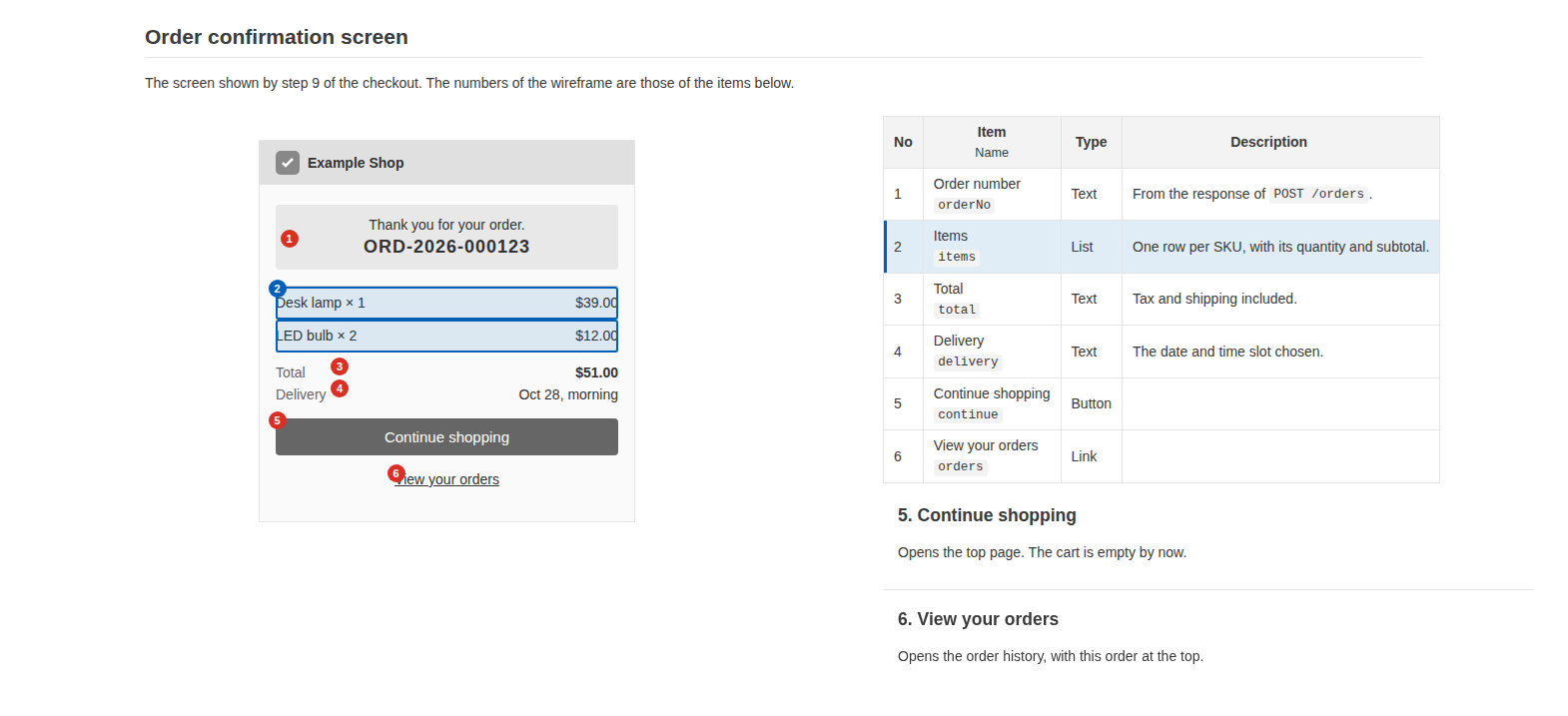
Wireframes of screens
Put a screen mock-up written in HTML into the document like an image, and number its parts with data-item. A screen of a running app can be captured as one with the command line, and numbered by CSS selectors. Its parts are linked to the rows of the item table and the headings with the same numbers, like the arrows of a diagram. On GitHub, an image of the screen stands for it.
- Editor syncThe preview follows the editor's scroll and cursor. Double-click to jump to the source line.
- HTML exportOne HTML file with the diagrams rendered and images embedded. Print it to PDF from the browser.
- Table of contentsHover the right edge to open the headings and jump to one.
- Diagram and image zoomShow a diagram full screen, then zoom with the wheel and pan by dragging.
- Light / dark themeFollows VS Code's theme, or switch the preview alone with one button.
- Write with AIAn authoring guide and an Agent Skill let AI assistants write documents in this format.
- Compare with Git historyChoose a commit and see what changed in the preview: blocks marked, changed words highlighted. Export the differences to HTML too.
- Design doc listList the design docs of the workspace with their version and status, then filter and sort them.
- Resizable columnsDrag the boundary between the diagram and its steps; double-click to reset.
- FindPress Ctrl+F (Cmd+F on macOS) to search the preview.
Get started
Free and open source under the MIT License.
VS Code extension
Preview the documents while writing them, with the editor and the preview in sync.
Desktop app
Read design documents without VS Code, on Windows, macOS and Linux. The view updates when the file is saved, and exports to HTML and compares with Git history like the extension.
Command line
Export the documents to HTML in CI or in a batch. Needs Node.js 22 or later and Chrome.
npx markdown-design-doc-viewer export docs -o siteAgent Skill for AI
Have Claude and other AI assistants write design documents in this format, in your language.